
Keyword Tools - The Cross Reference (XREF) Tool
Use the Cross Reference Tool to quickly check if a list of keywords are used on a specific URL. On top of this, the Xref tool also works like a Density Tool and checks these data points: Meta Title, Meta Description, Meta Keywords, Body Content, Heading Tags, In Links, ALT Tags, Href Title Tags and also provides the Keyword Discovery search volumes.
There are 2 different Cross Reference tools available.
-
You can use the Cross Reference tool from results.
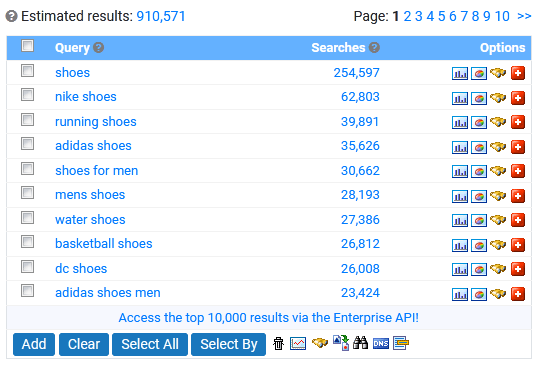
This will cross reference the provided URL against the keywords displayed in the results.
To use cross reference tool:
- Click the cross reference icon in any set of results.
- Enter a URL to cross reference your keywords with.
- Click Ok to perform the cross reference.
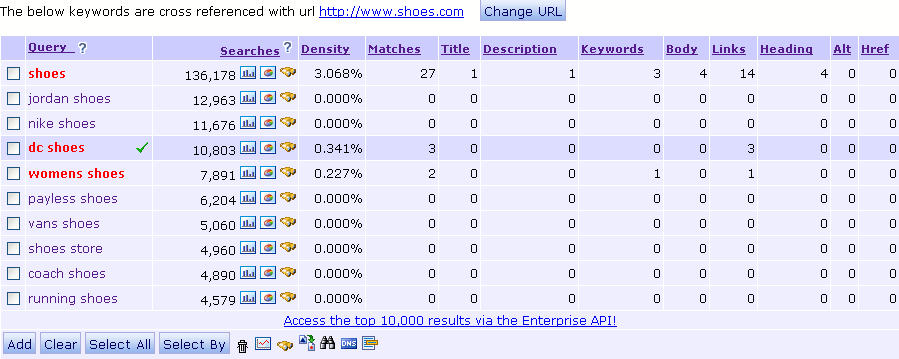
The results page will now be shown. Keywords already in your project will show a green tick next to them. You can add keywords to your project by selecting them and clicking the Add button.
You can change the URL to cross reference against by clicking the Change URL button.
For explanations of the columns in the results, click here.
-

With the stand alone tool, you can provide your own keyword list to cross reference with the provided URL.
You can also import keywords from various sources, including:- Upload Keywords from a Text File - allows you to upload a text file (.TXT) list of keywords (line seperated). Other formats such as Excel and Word are not supported.
- Extract Keywords from Meta Tags - allows you to extract keywords from the meta tags of a web page.
- Extract Keywords from a URL - allows you to extract keywords from a web page. Unlike the Extract Keywords from Meta Tags option, it will extract keywords from anywhere in the page.
- Import From Projects - allows you to load keywords from a project.
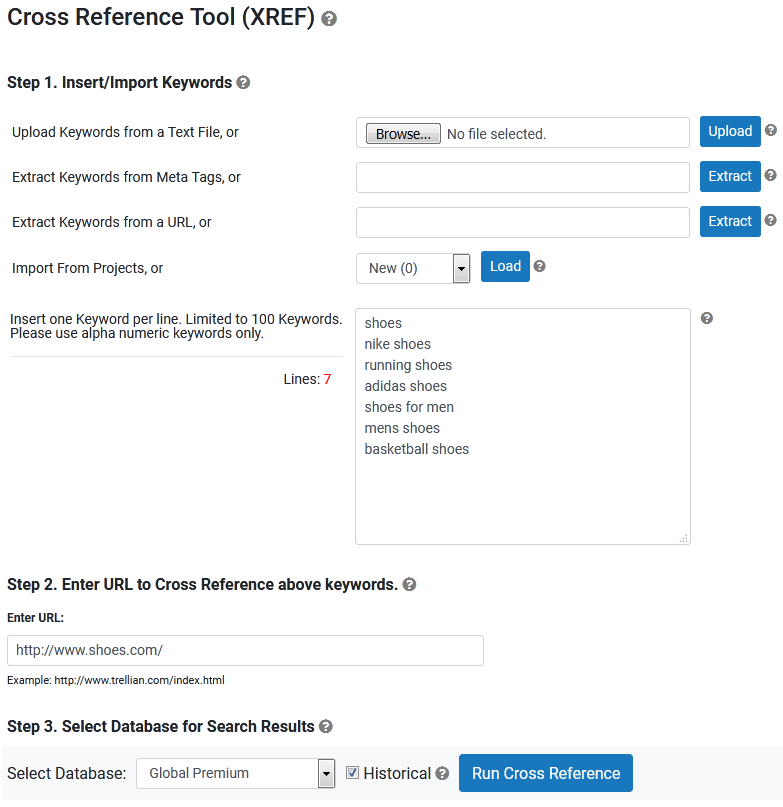
To use the stand alone cross reference tool:
- Import a list of keywords to compare against the URL. You can import from a text file, from a web page, project, or by copy and pasting into the text field.
- Enter a URL to cross reference your keywords with.
- Choose a database to retrieve search volumes from. Checking the Historical checkbox will display search counts from August 2008 to present.
- Click Run Cross Reference to perform the cross reference.
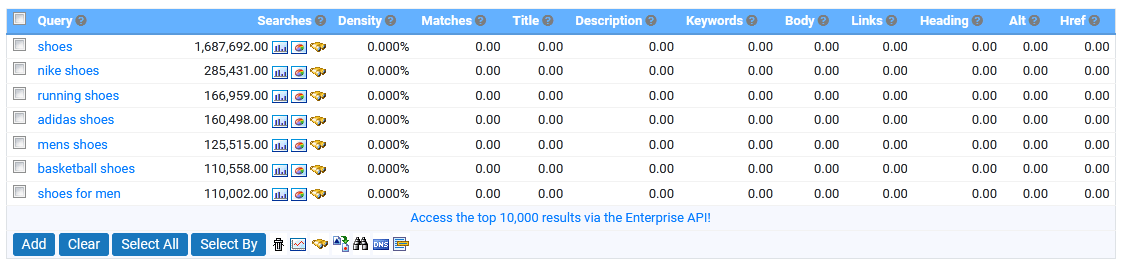
The results page will now be shown. Keywords already in your project will show a green tick next to them. You can add keywords to your project by selecting them and clicking the Add button.
You can change the URL to cross reference against by clicking the Change URL button.
For explanations of the columns in the results, see below.
The X-Ref Columns
By default, the list is sorted by the Searches column (highest to lowest). To change the ordering, simply click on the title of a column.
The following explains the meaning of each column in the results:
The search terms you entered into the keywords field.
SearchesDisplays keyword's search volume in the selected database.
DensityThe density of the keyword from the analyzed URL (shown as a percentage).
MatchesDisplays the number of times the search term was found on the web site outside of the Meta tags. These keywords are shown in red.
TitleNumber of times the search term appears in the title tag of the page.
DescriptionDisplays the number of times the search term appears in the meta description tag of the page.
KeywordsDisplays the number of times the search term appears in the keywords meta tag of the web site. Keywords are shown in black if they are found in the meta tags only.
BodyThe total number of times the search term appears between the <body> tags, excluding anything that is counted elsewhere.
LinksThe number of times the search term appears in link text. Eg. <a href="">here</a>
HeadingThe number of times the search term appears in heading tags. Eg. <h1>,<h2>,<h3>, etc.
AltThe number of times the search term appears in the alternative text for images. Eg. <img src="image.gif" alt="here">.
HrefThe number of times the search term appears in the title or name attributes of a hyperlink tag. Eg. <a href="" title="here" name="or here" >a link</a>
For an in depth analysis of your website, including a competitor analysis, have a look at SEO Reports at
http://www.trellian.com/seoreport/
< Projects | Keyword Reports >